GPS Fleet Tracking
GPS fleet tracking from the phone already in the vehicle
Every trip records itself, free, with nothing to install. On Turbo, the latest position of every vehicle sits on one map.
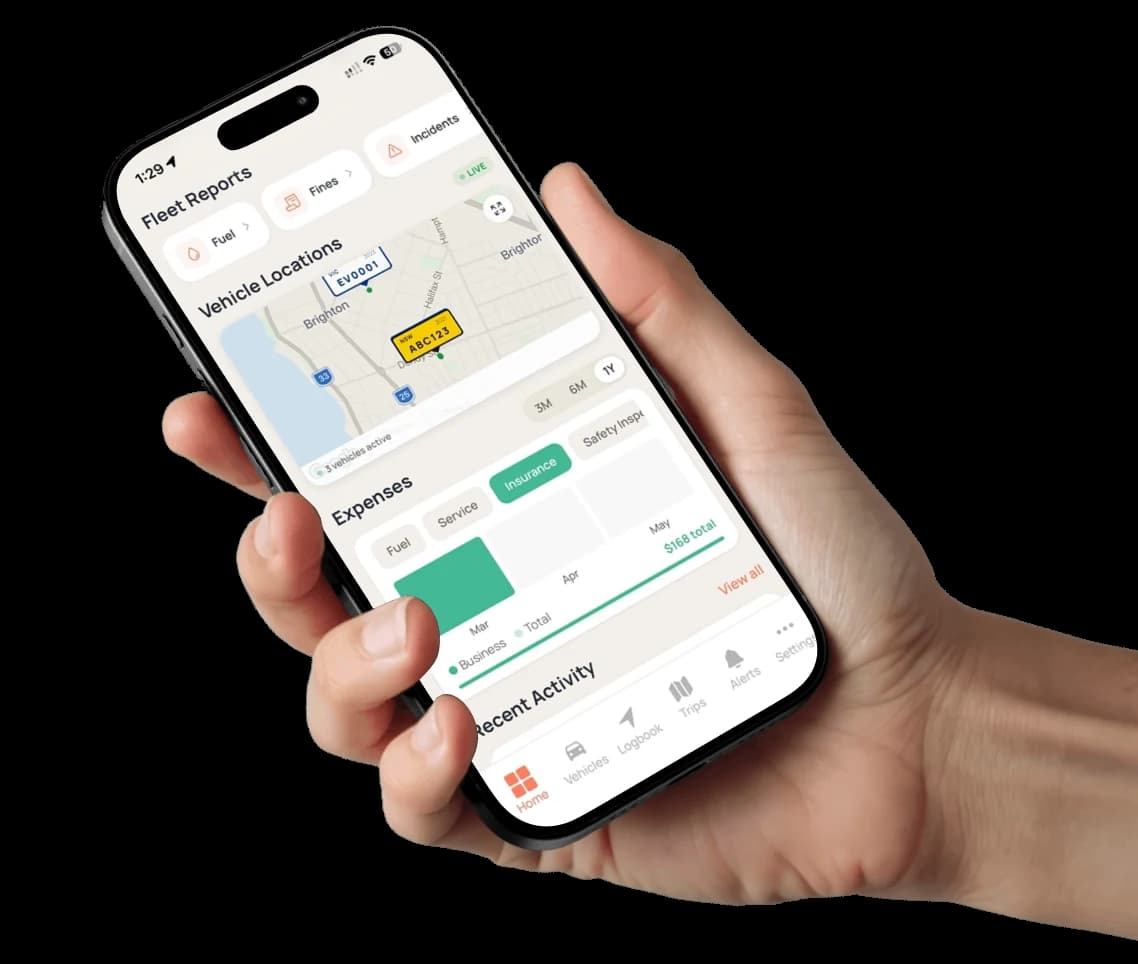
Most GPS tracking starts with a hardware quote: a unit per vehicle, an installer and a contract long enough to pay for both. Axlerun records trips from the driver's phone instead. Recording starts when the vehicle moves and stops when it parks, keeps the route, distance and times, and costs nothing on the first three vehicles. Drivers see their own trips, owners and admins can open any vehicle's, and on Turbo every trip across the fleet can be reviewed from one view and the latest known position of each vehicle sits on one map.
Available on
 Drive· automatic trip recording, free
 Turbo· fleet trips view + latest locations map
What you get
Nothing to install
Trips record from the driver's phone, using the same background recording that keeps the logbook. No tracker, no installer, no second vendor, and nothing to move when a driver changes vans.
Hours you choose
Logging Hours sets when automatic recording runs: always, weekdays, weekends, custom days, or never. Outside the window, logging pauses on its own, so nobody has to remember to switch it off at knock-off.
A pause button, with a limit
A driver can pause logging for 15 minutes, 30 minutes, an hour or two hours, with a reason such as walking or public transport. It resumes on its own and says so, so a forgotten pause cannot quietly drop a week of trips.
Where each vehicle was last seen
On Turbo, the Latest Vehicle Locations map shows the last recorded position of every vehicle, with a searchable picker to jump straight to one plate. Vehicles with no recent position are listed separately rather than left off the map.
See who is actually logging
The driver tracking roster shows each team member with Tracking On or Off, the schedule they log to, and their pause history. It is the check that a missing trip means nobody drove, not that the app stopped.
Fix a trip on the map
Switch on "Let trips be adjusted" in Business settings and a recorded trip can have its start or end moved, be cut into two, or be joined to the trip before or after, on a map, before it is classified. On Cruise, a mis-logged trip can also be moved to the right vehicle.
The live drive card
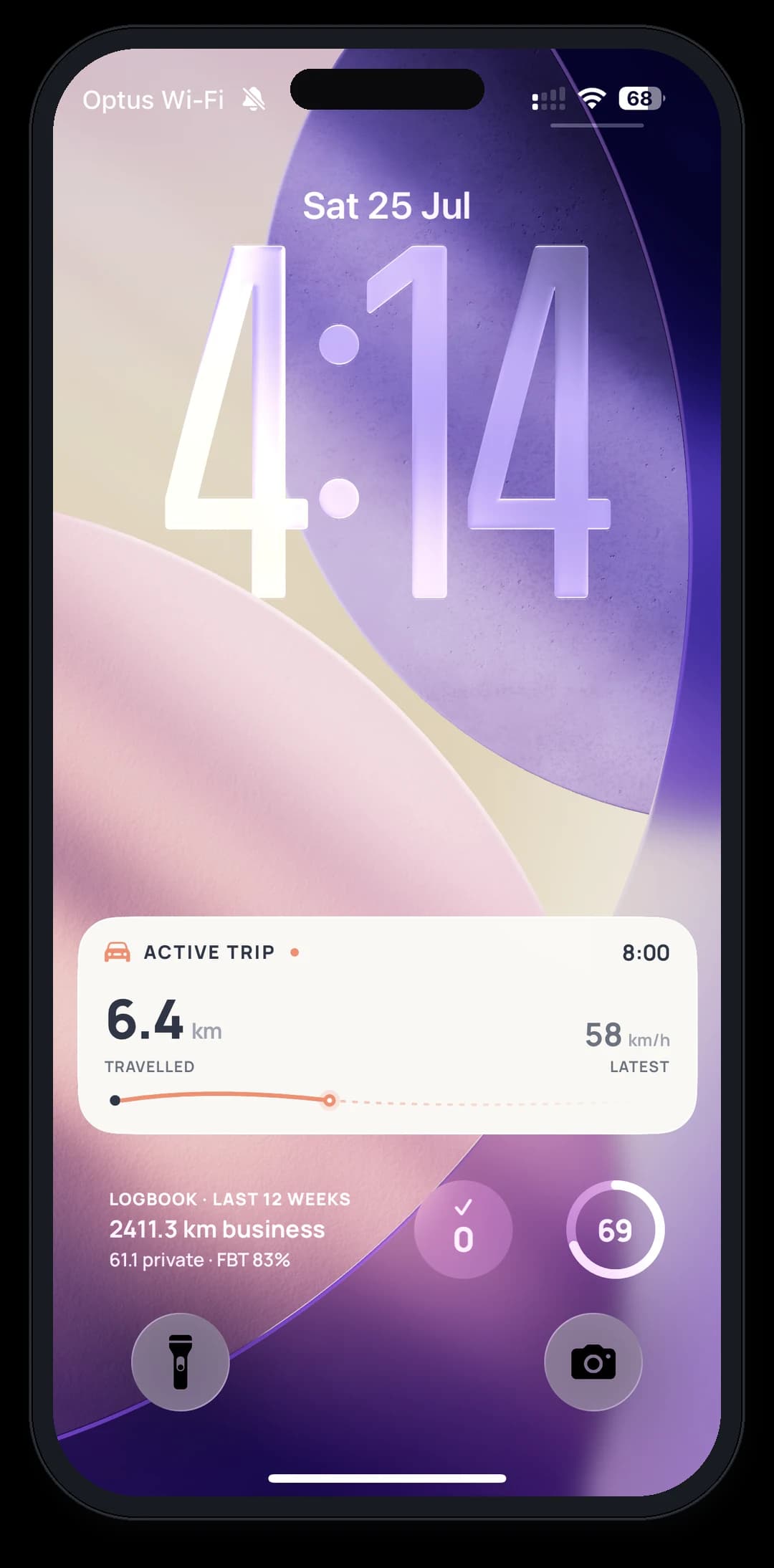
Turn it on in Settings and, while a trip records, an Active Trip card sits on the lock screen with distance and speed updating as you go, on every plan including free Drive. On Cruise, CarPlay puts the active trip and recent history on the head unit as well.
How it works
STEP 1
Grant the permissions
Background location and motion access are what automatic recording depends on. The app asks for them in order and tells you which one is missing.
STEP 2
Drive
Trips start when the vehicle moves and close when it parks. Turn on the live drive card and it shows distance and speed on the lock screen while one is recording.
STEP 3
Look back, or look across
Every trip has its route on a map. Owners and admins can open any vehicle's trips, and on Turbo review every trip across the fleet from one view and see the latest position of each vehicle on the Latest Vehicle Locations map.
See how it fits the rest of the platform on the Features & Pricing page.
Related
Common questions
About GPS Fleet Tracking
Still have questions?
Contact
Available Now
Start managing your
fleet today
Your first 3 vehicles are free, forever.


Already a customer? Sign in on the web
app.axlerun.com.au