Sites & Cost Centres
Every vehicle at the right depot, every dollar on the right budget
Record the sites your vehicles work from and split each vehicle's costs across cost centres. Your fleet reports show the split, so nobody has to.
Once a fleet spans more than one yard or one team, two questions come up every month: where does this vehicle live, and whose budget does it come out of? Axlerun answers both on the vehicle itself. Assign each vehicle to the depots it works from, split its costs across cost centres by percentage, and the four fleet reports carry the split into every CSV and PDF your accountant opens.
Available on


 Drive & Cruise & Turbo· owner and admin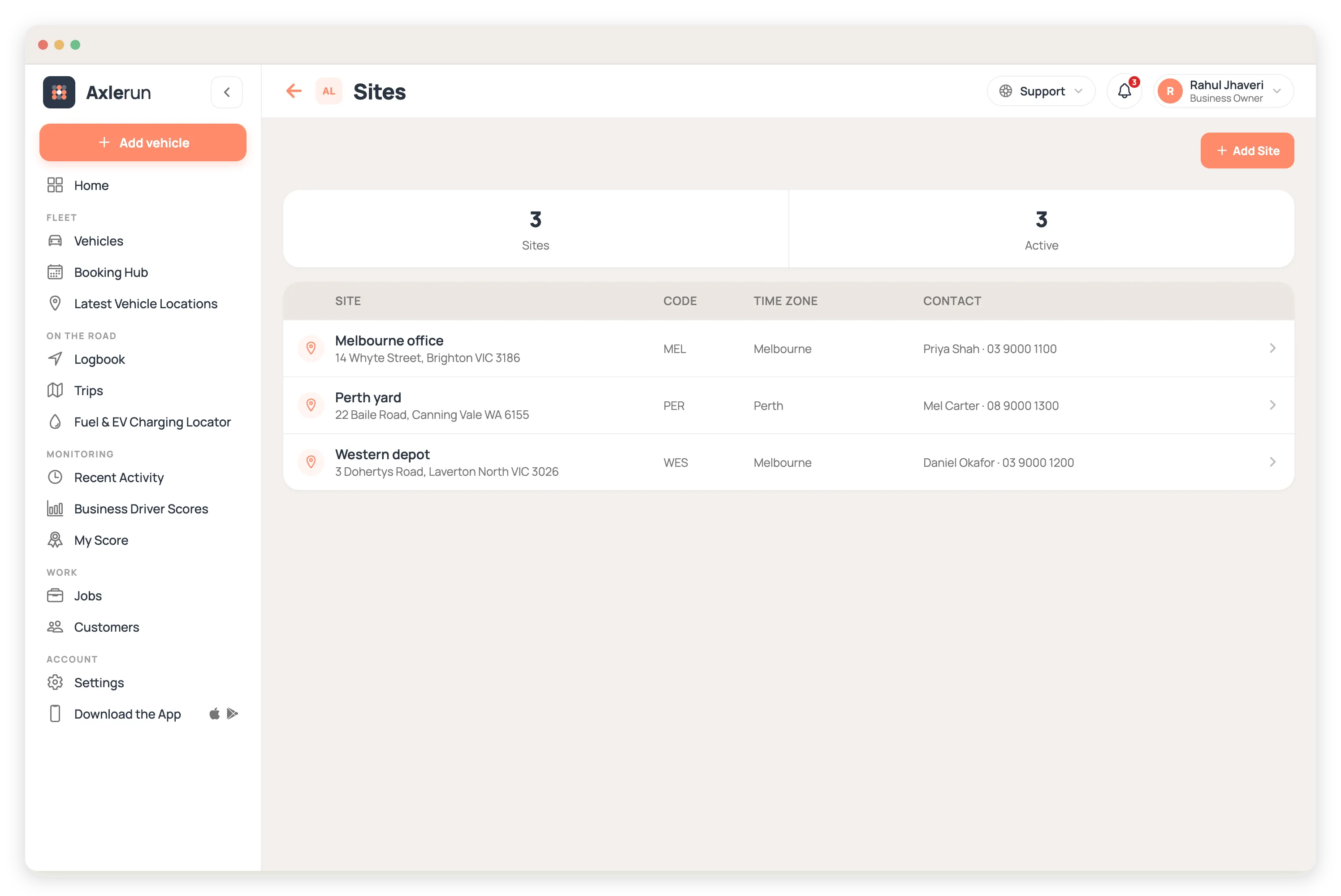
What you get
Sites with their own time zone
Each depot, yard or office gets a name, code, address, contact and time zone. Pools at a Perth site keep Perth hours, even when the office is in Sydney.
One primary home per vehicle
A vehicle can work from more than one site, with one marked primary. Move the primary in a tap when a vehicle changes depots.
Split costs by percentage
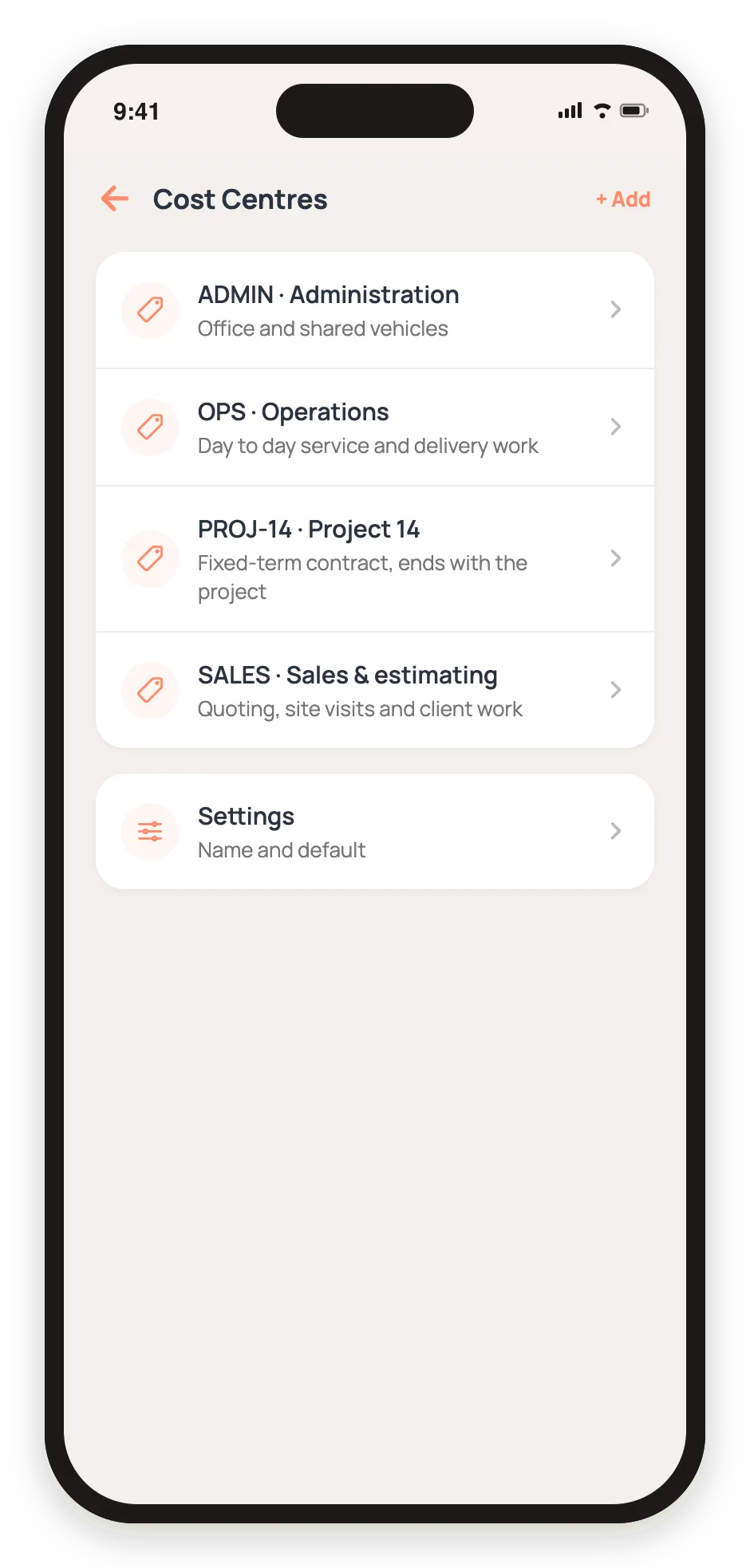
Put a vehicle 100% on one cost centre, or split it, say 60% Operations and 40% Finance. Splits must total 100% before they save, so the numbers always add up.
Call them what you call them
Department, division, business unit: rename cost centres once and the new name shows across the app and the reports. Set a default for vehicles with no split, or show them as Unallocated.
History kept, not overwritten
Every change to a vehicle's split is kept with when it changed, so last year's costs still land on last year's budget.
On the reports, in the exports
Vehicle Running Cost, Fleet Portfolio, Compliance and Expiry Register, and Fines and Incidents all show each vehicle's cost centres, on screen and in the CSV and PDF downloads.
On the phone as well
The same cost centres are on the vehicle in your pocket, so whoever is standing next to it can see whose budget it comes out of.

How it works
STEP 1
Add your sites and cost centres
Name them, give them codes, and set the time zone for each site. Nest cost centres under a parent if your chart of accounts does.
STEP 2
Assign each vehicle
From the vehicle, add it to its sites, mark the primary, and set its cost centre split.
STEP 3
Run the reports
The fleet reports show every vehicle's split, ready for the accountant, the budget meeting or the insurer.
See how it fits the rest of the platform on the Features & Pricing page.
Related
Common questions
About Sites & Cost Centres
Still have questions?
Contact
Available Now
Start managing your
fleet today
Your first 3 vehicles are free, forever.


Already a customer? Sign in on the web
app.axlerun.com.au